Why Does My Printer Shut Down or Print Garbled Text?
Unexpected printer shutdowns or garbled, unreadable print output are common issues that can disrupt production, waste materials, and reduce efficiency. These problems usually stem from hardware faults, data transmission errors, software configuration issues, or unstable power supply.
Below, we break down the most common causes and provide clear, practical solutions to help you restore normal printing quickly.
1. Encoder and Sensor Problems
Typical symptoms:
•Printer shuts down suddenly during printing
•Output appears misaligned, repeated, or incomplete
Possible causes:
The encoder strip or encoder sensor may be dirty, misaligned, or damaged. Since the encoder helps the printer track printhead position, any reading error can cause incorrect output or force the printer to stop.
Solutions:
•Power off the printer and gently clean the encoder strip with lint-free cloth
•Check that the encoder sensor is properly aligned
•Replace damaged encoder components if necessary
2. Data Transmission Errors
Typical symptoms:
•Random symbols or unreadable characters in printed output
•Printed content does not match the original file
Possible causes:
Unstable USB or network connections, poor-quality cables, or corrupted data transmission between the computer and printer.
Solutions:
•Replace the USB or data cable with a high-quality, shielded cable
•Avoid excessively long cables
•Try a different USB port or switch from USB to network connection
•Restart both the printer and the computer
3. Driver and Software Configuration Issues
Typical symptoms:
•Garbled text or symbols instead of readable content
•Printer fails to interpret print commands correctly
Possible causes:
Outdated or incompatible printer drivers, incorrect print language settings (such as PCL vs PostScript), or unsupported file formats.
Solutions:
•Remove the existing printer driver and reinstall the latest official version
•Confirm the correct printer language is selected
•Save files as PDF before printing to reduce compatibility issues
4. Printer Memory or Consumable Issues
Typical symptoms:
•Printer freezes or outputs partial images
•Print jobs fail with no clear error message
Possible causes:
Insufficient printer memory, print queue overload, or poorly installed ink cartridges / consumables.
Solutions:
•Clear the print queue and restart the print spooler
•Reduce print resolution or job size
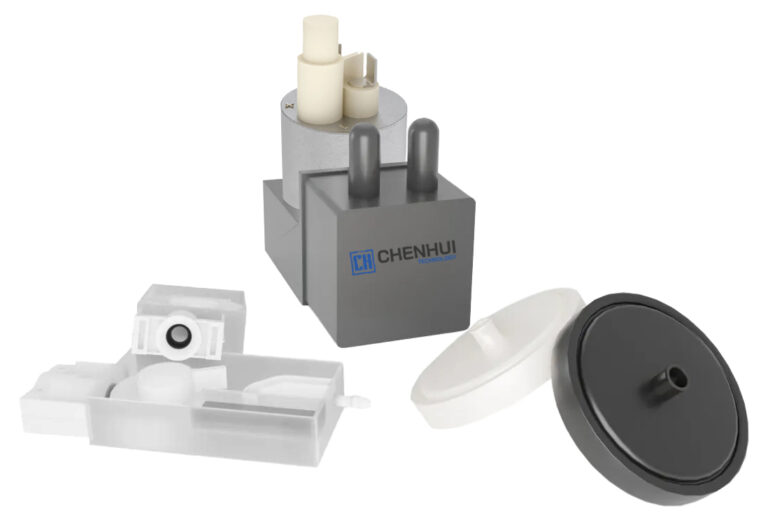
•Ensure ink cartridges, dampers, or consumables are properly installed
•Check for system error indicators on the printer panel
5. Power Supply and Electrical Interference
Typical symptoms:
•Printer shuts down randomly
•Printing becomes unstable or inconsistent
Possible causes:
Unstable voltage, poor grounding, or electromagnetic interference from nearby equipment.
Solutions:
•Use a stable power source or voltage regulator
•Avoid sharing power outlets with heavy machinery
•Ensure proper grounding to prevent static interference
Recommended Troubleshooting Order
To save time, follow this sequence:
1.Restart the printer and computer
2.Check and replace data cables
3.Reinstall or update printer drivers
4.Clear print queues and memory
5.Print a test page
6.Inspect encoder, sensors, and power supply
Final Thoughts
Printer shutdowns and garbled output are rarely caused by a single issue. In most cases, they result from a combination of hardware wear, communication errors, or software configuration problems. Systematic troubleshooting can resolve most issues without professional repair.
If problems persist after applying these steps, further hardware inspection or technical support may be required.